Godot 2D skeletal animation: rig a character in your browser, export a Skeleton2D scene
Draw or import a character, give it bones and animation clips in pinkcel, and export a native Godot 4 scene: a Skeleton2D with Bone2D nodes, one Sprite2D per body part and an AnimationPlayer that already holds every clip. No add-ons, no runtime plugin, nothing to install on either side.
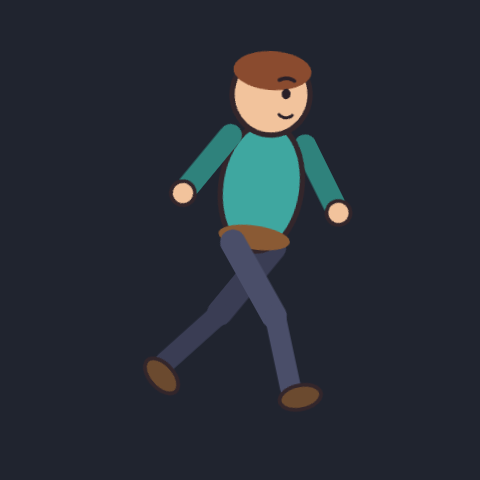
What the export contains
The export writes two files: character.tscn, a text scene in Godot 4's own format, and character_atlas.png, one texture that holds every body part. The scene uses only built-in nodes, so it opens in any Godot 4 project as it is. Here is the full tree for the demo fighter shown above:
Character (Node2D)
├── Skeleton2D
│   └── Torso (Bone2D)
│       ├── Torso (Sprite2D)
│       ├── Head (Bone2D)
│       │   └── Head (Sprite2D)
│       ├── Arm_near (Bone2D)
│       │   └── Arm_near (Sprite2D)
│       ├── Arm_far (Bone2D)
│       │   └── Arm_far (Sprite2D)
│       ├── Thigh_near (Bone2D)
│       │   ├── Thigh_near (Sprite2D)
│       │   └── Shin_near (Bone2D)
│       │       └── Shin_near (Sprite2D)
│       └── Thigh_far (Bone2D)
│           ├── Thigh_far (Sprite2D)
│           └── Shin_far (Bone2D)
│               └── Shin_far (Sprite2D)
└── AnimationPlayer
└── library: default, idle, run, jump, attack- Bones become
Bone2Dnodes in the same hierarchy you built, each with its rest transform, length and angle set explicitly, so Godot never has to guess them. - Every drawing layer becomes a
Sprite2Dparented to the bone it follows. The vector art is rasterised once into the shared atlas; each sprite points at its region. - Every clip becomes an animation in one
AnimationLibrary, keeping its name and its loop setting.defaultis your main timeline. - Tracks are baked per frame: bone rotations, sprite transforms, and visibility for switch groups, so blinks and mouth swaps come along too. Every animation keys every part that any animation moves, so switching from run to idle never leaves a leg mid-stride.
- Stacking order survives. Sprites sit under their bones, so each one gets a
z_indexthat reproduces the layer order you had in the editor.
For this fighter that is 8 bones, 8 sprites and 5 animations in a 27 KB scene file, with every part packed into one 208×255 atlas. The export takes well under a second in the browser.
The exporter is verified by loading its output in Godot 4.6.2 with a script that asserts each bone hangs off its parent, each sprite has its texture and every animation plays. The same check runs on a document whose bones are stored child-first: the exporter writes them parents-first, because Godot silently re-parents a node whose parent does not exist yet.
Step by step
- Make the parts. Draw each moving part on its own layer (head, torso, upper and lower limbs), or import a layered PSD. Give the parts rounded ends where they meet so joints stay closed when they rotate.
- Build the skeleton. Pick the Bones tool (K) and drag from the hips up. Starting a drag on an existing bone chains the new bone to it. Bones can be renamed in the inspector; their names become the Godot node names.
- Bind the parts. Select a layer and set Rig binding to Rigid with the bone it should follow. More on binding in the 2D rigging guide.
- Animate clips. Turn the layer group into a character (Make character), add clips named the way your game code expects (
idle,run,jump,attack) and pose them with the Pose tool (J; hold Shift for IK). Auto-key writes the keys. - Export. File → Export → Game engine…, choose Godot 4 and the format Skeleton scene (.tscn, rigged). Everything renders in your browser; nothing is uploaded.
- Drop it into Godot. Copy both files into your project (for example into
res://characters/), then instancecharacter.tscnin your player scene.
Playing clips from GDScript
The AnimationPlayer sits directly under the scene root, so a player controller only needs its path. A minimal platformer body that switches between idle and run:
extends CharacterBody2D

const SPEED := 320.0

@onready var visual: Node2D = $Character
@onready var anim: AnimationPlayer = $Character/AnimationPlayer

func _physics_process(_delta: float) -> void:
    var dir := Input.get_axis("ui_left", "ui_right")
    velocity.x = dir * SPEED
    move_and_slide()

    if dir != 0.0:
        visual.scale.x = signf(dir)   # face the direction of travel
        anim.play("run")
    else:
        anim.play("idle")
Non-looping clips such as attack keep their loop flag off, so you can wait for animation_finished before handing control back to idle.
Tips for game-ready rigs
- Keep clips in place. In a game the physics body moves the character. Clips are exported without the main timeline's root motion, so a run cycle runs on the spot and your code supplies the speed.
- Mind the origin. The scene keeps pinkcel's coordinates. A character drawn in the middle of a 1280×720 scene sits roughly 640 px right and 400 px down from the scene origin, so offset the instance until the feet land where your collision shape expects them.
- Pick the frame rate on purpose. Tracks are baked at the scene's frame rate (24 fps by default). Change it under Scene before you animate if your project prefers 30 or 60.
- Name things once. Bone, layer and clip names carry over to node and animation names, and names that would collide under one parent get a suffix so every track path resolves to the right node.
- Use switch groups for faces. Eyes and mouths drawn as a switch group export as visibility tracks, so a blink or a mouth shape is one key, not a redrawn frame.
Current limitations
The skeletal export is a rigid cut-out rig. Where your rig uses features Godot's scene format cannot carry as they are, the exporter approximates and tells you:
- Mesh deformation (bending limbs) is exported as a rigid part attached to the bone that influences it most.
- Point animation (animated shapes) is exported in its rest shape; the export dialog warns before it does this.
- Morph corrections are not exported.
When a character leans heavily on those, export a sprite sheet instead: every frame is baked exactly as you see it.
FAQ
Do I need a plugin or add-on in Godot?
No. The scene uses only built-in nodes (Skeleton2D, Bone2D, Sprite2D, AnimationPlayer), so it works in a fresh project.
Which Godot version does it support?
Godot 4. The exporter writes the Godot 4 text scene format, and we test the output on Godot 4.6.2.
Can I tweak the animations in Godot afterwards?
Yes. They are ordinary keyframe tracks in the animation editor. Re-exporting from pinkcel replaces them, so treat pinkcel as the source and make lasting changes there.
My engine is not Godot. What should I use?
The sprite sheet export works in any engine: one atlas plus a JSON file with the frame range of every clip.
Is it free?
Yes. Rigging, animation and every export are free, with no watermark. Rendering happens on your own computer.
Try it with your own character
No account and no install: open the editor, draw or import a character, add bones and export to Godot in one sitting.
Open the editor, free